/Afbeeldingen/Mysolution%20Logo.png?width=150&height=113&name=Mysolution%20Logo.png)
Introduction
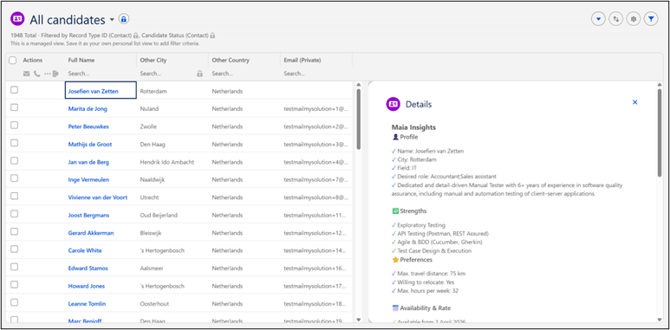
With this release we introduce a new way to manage your candidates. With List Views you can manage candidates in an action-oriented way via configurable lists in MSR — think "Top candidates this week" or "Available candidates". These lists are accessible to users via the homepage.
Who is this feature relevant for?
Organisations that want to approach their candidates in a structured way.
Benefits at a glance
- Lists are managed by users with specific permissions.
- Users can access these managed lists via the homepage.
- From the list you can directly send an email, make a call, send an SMS or WhatsApp message, or start another workflow process. With a fade-in panel, you open a screen flow with for example a MAIA summary of the candidate.
- Records can be filtered directly in the column or by travel distance. If you turn the managed list into a personal list, you can add your own filter criteria.
- Edit candidate fields directly in the list itself, without opening the record.
Feature explanation
Users who can create managed lists compile the list. You specify which action buttons you want to use. Via Workflow action settings you add screen flow actions, for example to add candidates to a matchlist or as a match on a vacancy.
Managed list views
Managed lists have a specific column layout. As an administrator you determine which columns are visible (and optionally lock them so they remain visible at all times). You can decide whether users can add all candidate fields as a column, or whether only specific fields can be selected.
With filters you narrow the list down to a manageable size. You can filter on fields of the candidate, but also on application, match, placement, employment contract and absence. This allows you to compile any desired list.
Once you are satisfied with the list you can activate it so that it becomes available to other users. In the list view configuration screen you have an overview of all managed list views and you can clone, activate or deactivate them.
Users have direct access to the managed lists via the homepage. They immediately see how many candidates are included in the relevant list and which filters and sorting have been applied. By entering a search value in a column, you filter the results. You can also search by distance to further refine the results. If you notice that certain data is incorrect, you can edit it via the inline edit option without first opening the candidate record. You can also apply this to multiple candidates at the same time.
With the action buttons you can take direct action with the option to immediately — without leaving the list — send an email, make a call, send a WhatsApp message, or link the candidate to the right vacancy or matchlist.
Users can create their own personal view based on this managed view by adding extra criteria and adjusting columns.
Setup / Implementation time
Configuration is required to use this feature. You can read how to do this in this configuration document.
Other features in this release
🔗 Find all features from this release here