/Afbeeldingen/Mysolution%20Logo.png?width=150&height=113&name=Mysolution%20Logo.png)
Introduction
With this new functionality, fields on the MSR portal can be made dynamically visible based on responses or values of other fields within the same portal controller. This makes filling in forms clearer and more relevant for candidates and portal users.
The functionality aligns with the existing logic within MSF and makes it possible to configure complex forms in a more user-friendly way without customisation. Administrators can use this to configure flexible dependencies between fields, so that users only see the information that is relevant to their situation.
Who is this feature relevant for?
Administrators who configure portals in MSR and want to dynamically control the visibility of fields based on input and data from a portal user.
Organisations that want to simplify their portal forms by only showing relevant fields depending on the user's situation.
Benefits at a glance
- Fields can automatically become visible based on entered values, making portal forms clearer and more user-friendly.
- Multiple conditions can be used within a single field configuration.
- Improved administrator experience thanks to new configuration steps and condition display.
- No impact on existing portal configurations when the functionality is not used.
- This can be used for both the candidate and customer portal.
Feature explanation
Setting conditions on portal fields
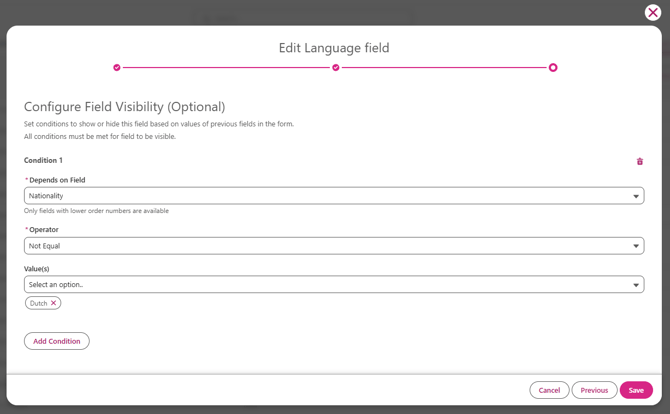
Administrators can set conditions per field via the portal controller configuration to determine when a field is visible. A condition consists of a source field, an operator and a value.
Renewed wizard process
The wizard for creating and editing portal fields has been renewed and now consists of three steps:
- Step 1: Select record and field type
- Step 2: Configure field details
- Step 3: Set visibility conditions
A progress bar indicates which step the administrator is on. When editing an existing field, the wizard opens directly at step 2. By clicking the eye icon in the portal controller list, the wizard opens directly at step 3.
Condition column in the portal controller list
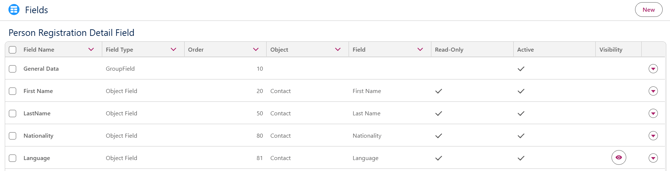
A new column has been added to the overview of portal fields within a portal controller. When a field has one or more active conditions, an eye icon appears in this column. Fields without a condition show nothing in the column.
Order and conditions
If a field has a condition on another field, the conditional field must always appear after the source field in the order. The relative order between these fields cannot be changed. Fields can be freely moved, as long as the relative order between a conditional field and its source field is maintained.
Inactive conditions and fields
Conditions marked as inactive are not evaluated. If a source field is set to inactive, the associated conditions are automatically set to inactive as well. If a portal field is deleted, the linked condition records are automatically deleted.
Hidden fields are not saved when the form is submitted — this is ensured both on the client side and server side.
Setup / Implementation time
No additional configuration is required to use this feature. If assistance is needed with configuring this functionality, please contact a consultant or customer success manager.
Other features in this release
🔗 Find all features from this release here