/Afbeeldingen/Mysolution%20Logo.png?width=150&height=113&name=Mysolution%20Logo.png)
MAIA Match can be used in several ways:
- Per job application. We call this Job Alignment.
- Via a screen component, so you have direct insight from the job or candidate into which matches can be made. These are the MAIA Match recommendations.
- Fully automatically in the background. We call this Auto Match.
The benefits of MAIA Match
How MAIA Match can make your work easier:
- Automatically suggested matches for both the job and the candidate.
- Ability to get started with candidates directly from the application process.
How MAIA Match Recommendation works
From an indexed candidate, the MAIA Match recommendations show you the following: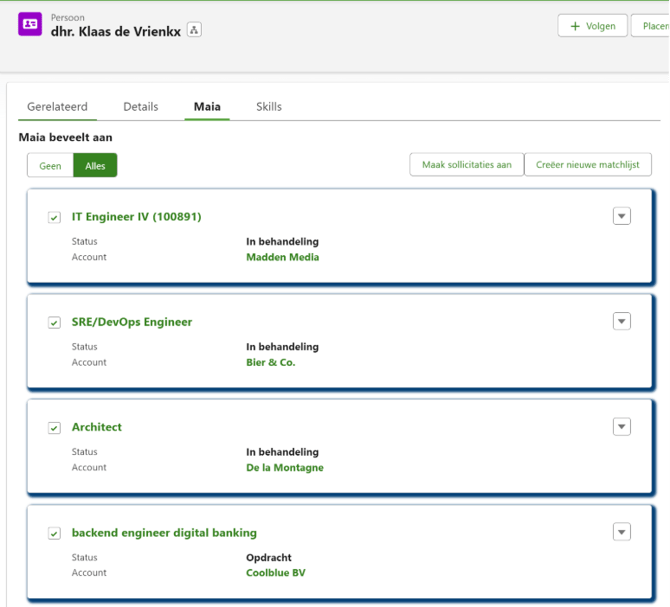
How Job Alignment works
To determine the match fit (alignment) of the candidate to the job, MAIA calculates a score and records this score, including a justification, on the job application.
For this fit, we've developed a model and method that looks beyond just the similarities between the candidate's CV and the job text. We also consider aspects such as travel distance, whether the move is a logical next career step, and over- or under-qualification based on education and work experience. Work experience is also assessed against the specific job requirements, and it's checked whether the candidate holds the required certificates.
The outcome would then be:
- Strongly Aligned: a very good fit because the candidate scores well on all aspects of the job.
- Aligned: a fit, where the candidate doesn't score on every point.
- No suitable matches.
This match fit is determined via a flow component, so you can decide yourself at which stage of the process you want to calculate it. For example, when the job application is created, or during the recruiter's first review.
How MAIA Auto Match works
A flow component has been created for Auto Match, so you can decide yourself how and when to apply it. For example, from a job status transition, or via a manual action on the job card. You could also use it to immediately search for other matches after rejecting a suitable candidate for a specific position.
Setup steps
In the MAIA settings (found via the App Launcher), the MAIA Match tab lets you configure this.
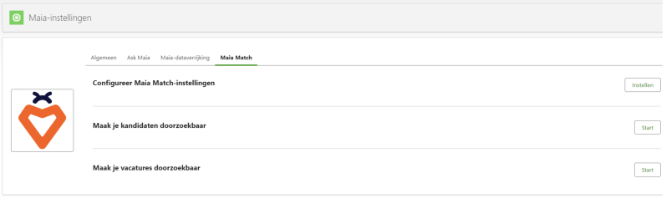
Via Configure MAIA Match Settings, you set a number of settings for the candidate and job matching:
Setup steps
In the MAIA settings (found via the App Launcher), the MAIA Match tab lets you configure this.
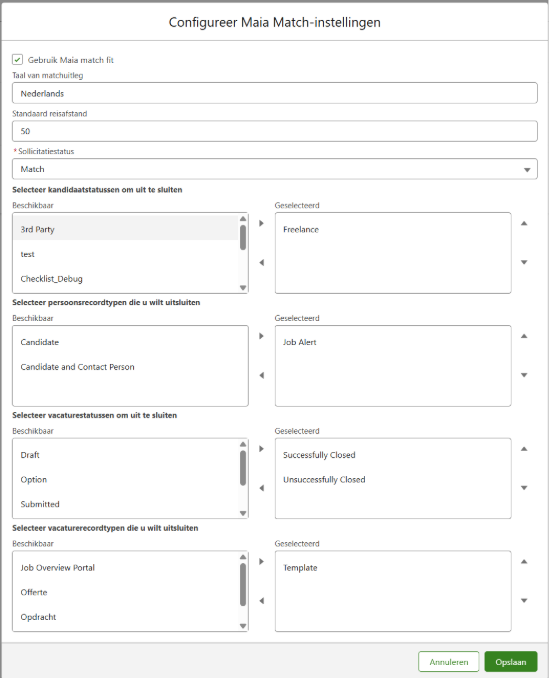
Via Configure MAIA Match Settings, you set a number of settings for the candidate and job matching:
- Use MAIA match fit activates Job Alignment.
- Language of the match explanation: specify the language in which you want the alignment justification to be recorded.
- Default travel distance. For further explanation, see the "Searching by travel distance" section.
- Job application status: this status determines how the job application is created from the MAIA Match screen component or via Auto Match.
- Candidate status to exclude: select a status you want to exclude from candidate recommendations. This refers to the Candidate Status Setting custom metadata types.
- Person record types to exclude: select a record type you want to exclude from candidate recommendations. This refers to the Person Record Type Setting custom metadata types where the Is Candidate property is enabled.
- Job status to exclude: select a status you want to exclude from job recommendations. This refers to the Job Status Setting custom metadata types.
- Job record types to exclude: select a record type you want to exclude from job recommendations. This refers to the available record types on the Job object.
To index candidates and jobs for use with matching, you can now click both "start" buttons found below the "Configure" button. Depending on how many candidates and jobs you have, this process can take up to a few hours; in our experience, it's usually fully complete within 1–2 hours. Only candidates with profiles and jobs with at least a job description are indexed.
Searching by travel distance
Travel distance (radius) can be taken into account in the search. If you leave the Default travel distance setting empty, travel distance won't be factored into the proposed matches.
The logic then works as follows:
Matching jobs from the candidate:- If a Candidate travel distance is filled in, it's checked whether jobs fall within the radius of the configured travel distance. This uses the postal code from the work experience and the country code of the job's linked account.
- If no Candidate travel distance is filled in for the candidate, the default travel distance from the setting is used.
- If a Job travel distance is filled in, it's checked whether candidates fall within the radius of the configured travel distance. This uses the postal code and country code of the person's "other" address.
- If no Job travel distance is filled in, the default travel distance from the setting is used.
Page layout
Via Setup, Object Manager, you can add the previously mentioned fields to the page layout.
Add the MAIA Match component to the candidate page and the job page via Page Maintenance. Note: there are two components listed. Use the top one — the one followed by "(maia)".
Setup steps Job Alignment
The MAIA Job Alignment flow component can be used in both a triggered record flow and a screen flow, and might look like this:
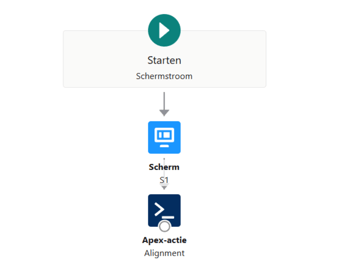
- The input parameter of the MAIA Job Alignment component is the ID of the job application record.
- The outcome is automatically written to the job application (Fit and Match explanation).
- The screen element is intended to inform the user that the process is being carried out in the background.
- If the Match explanation field is already filled in, the fit will not be recalculated.
Setup steps Auto Match
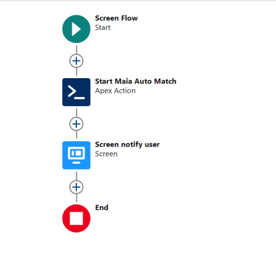
To automatically match candidates to a job, or jobs to a candidate, you need to set up a (screen) flow. Auto Match runs in the background and may take some time. The parameters of the MAIA Auto Match component are: It could look like this:
-
Add Aligned Matches to Applications: value true or false/empty. With true, suitable candidates or jobs are also matched. If this parameter is false or empty, only the best-fitting candidates or jobs are added.
-
Record Id: the record ID of the candidate or the job.
-
The screen element is intended to inform the user that the process is being carried out in the background.
-
Auto Match will suggest a maximum of 10 Strongly Aligned and 10 Aligned candidates or jobs out of all possible matches.
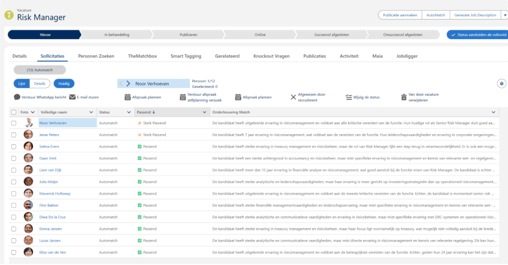
After Auto Match has run, the Maia Auto Match Performed field on the job (maia__Performed_CAutoMatch__c) is set to Yes. If you run Auto Match from the candidate, the maia__Performed_JAutoMatch__c field is updated instead. To prevent this from accidentally running multiple times, the system first checks whether this field is set to No before running.
Feature Implementation Time
-
Quick Implementation (approximately 4 hours)
Prerequisites
You must have MAIA installed in your environment.